
Maktaba's apps
Maktaba runs on a computer you own: the home. These apps are how people use it, to watch on a phone, a tablet, a computer or a television, and to run the home. Every app is in English and Arabic, and the Arabic is laid out right to left.
Each app
- Maktaba PlayerWatch: libraries, series, search, Live TV and your history, on phones, tablets and computers.
- Maktaba RemoteRun the home from a phone: what needs attention, the queue, libraries, machines and updates.
- Maktaba TVThe home's libraries and Live TV on the television, driven with the remote.
- Maktaba, the serverThe home itself: the server and the web app in one app for Mac, Windows and Linux.
- The web app and the big screenMaktaba in a browser: watching, and every page that runs the home; the big screen for a TV.
The apps at a glance
| App | For | Platforms | How to get it |
|---|---|---|---|
| Maktaba Player | anyone who watches | iPhone, iPad, Mac, Android phones, foldables and tablets, Windows, Linux | TestFlight; Google Play internal testing; the release downloads |
| Maktaba Remote | the home's admins | iPhone, Android phones, foldables and tablets | TestFlight; Google Play internal testing |
| Maktaba TV | watching across the room | Apple TV, Android TV, Google TV | TestFlight on the Apple TV; Google Play internal testing, or the signed .apk when a release carries one |
| Maktaba, the server | whoever runs the home | Mac, Windows, Linux | the release downloads; it updates itself |
| The web app | everyone, and the admin pages | any modern browser; the big screen for a TV | the home's address on port 8088, or through Maktaba Cloud |
The apps are in testing and not in the public stores yet. Testers get the Apple apps from TestFlight and the Android apps from Google Play's internal testing: the home's owner adds each tester, an Apple ID to the TestFlight testers group or a Google account to the testers list. Every release tag uploads a new build to both, which reaches testers as an update. The Windows, Linux and Mac downloads are on the latest release page, and they update themselves.
Finding the home and signing in
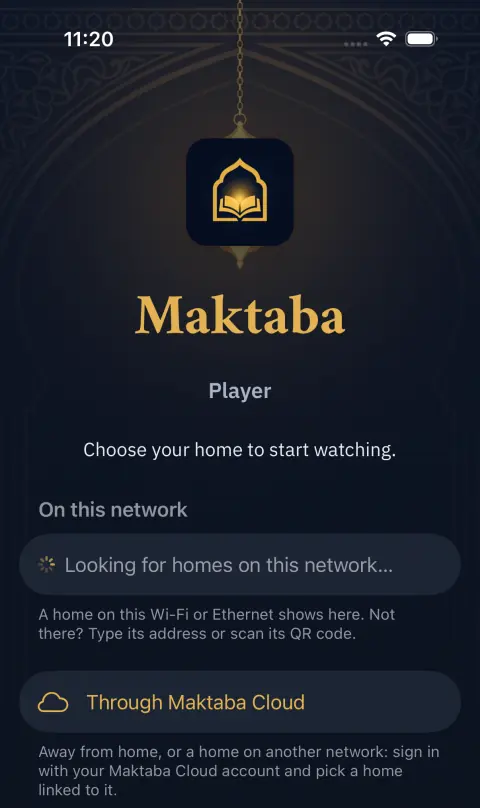
Every app starts at the home picker. On this network lists the homes that announce themselves on the local network, Your homes the ones this device used before, and By address takes the address you open Maktaba at in a browser, or a maktaba://connect link the home shared. Phones and tablets can also scan a QR code, and Through Maktaba Cloud reaches a home linked to a cloud account from anywhere.
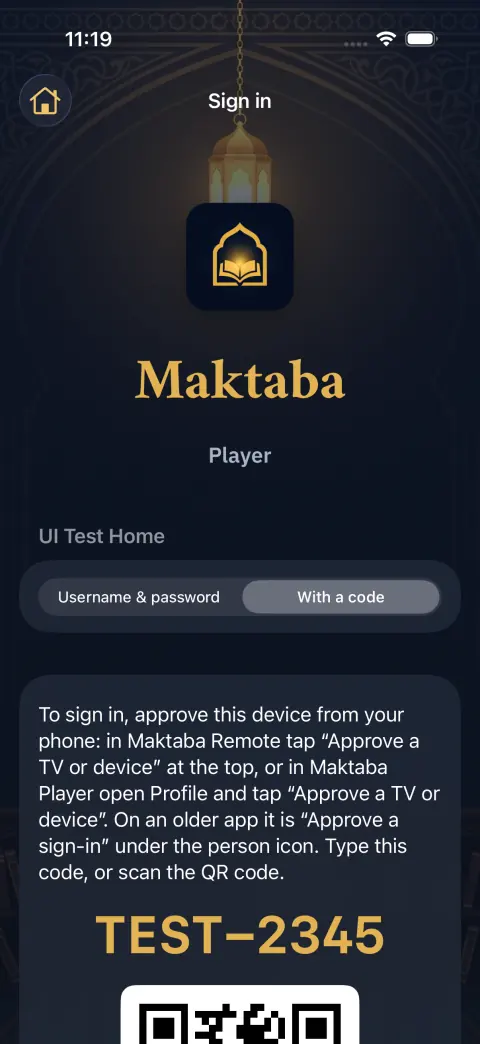
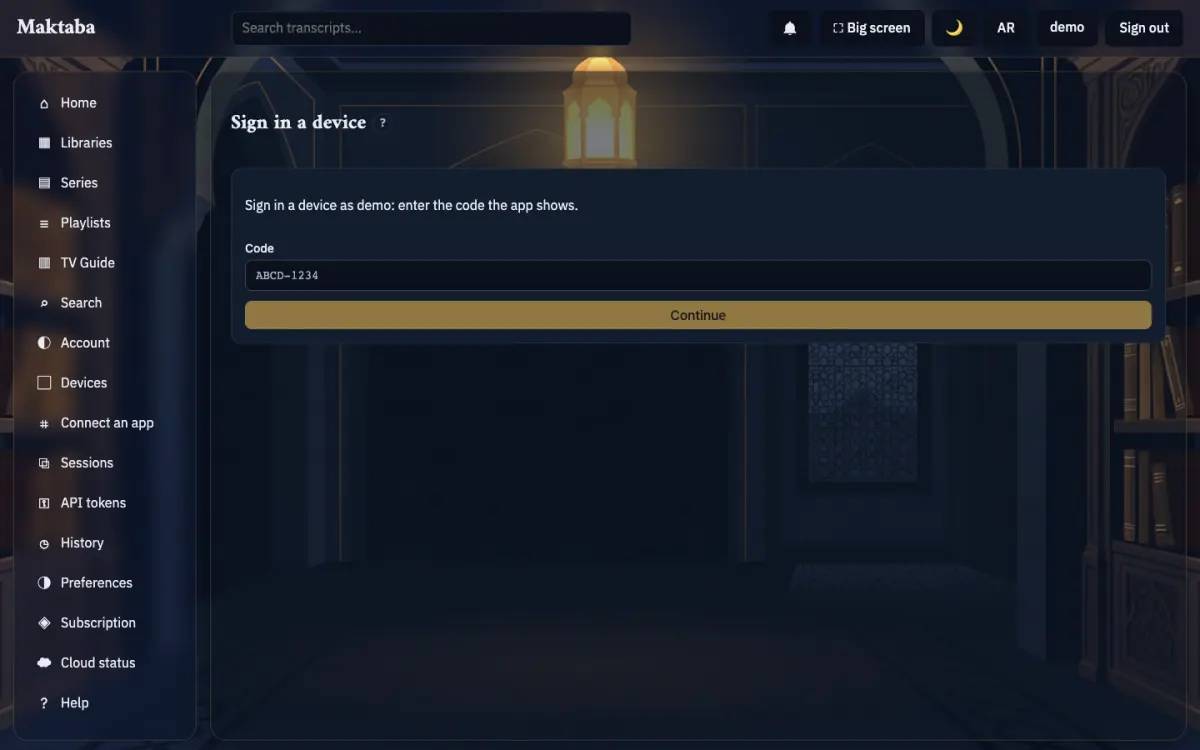
Then sign in with a username and password, or with a code: the device shows a code such as ABCD-1234 and a QR code, and someone already signed in approves it. In Maktaba Remote, Approve a TV or device is at the top of every screen; in Maktaba Player it is under Profile (on the Mac, in the Account menu); in the web app it is the Sign in a device page (/pair). The new device is signed in as the person who approved it, with that person's role.
The home enforces every role itself. An app hiding a screen is a convenience, not the rule: a modified app holding a viewer's token is still a viewer.
How the apps are built
The Player, Remote and TV apps are native and talk to the home's API, the same API the web app uses. Each app's README in the source says how to build and test it.
| Apps | Built with | Source |
|---|---|---|
| Player and Remote for iPhone, iPad and Mac | SwiftUI and the shared MaktabaKit | apps/apple/ |
| Player and Remote for Android | Jetpack Compose | apps/android/ |
| Player for Windows and Linux | Compose for Desktop | apps/desktop-player/ |
| Apple TV | SwiftUI and AVKit | apps/tv/tvos/ |
| Android TV and Google TV | Compose for TV and Media3 | apps/tv/android/ |
| Maktaba, the server app | Tauri 2 around the web app | apps/desktop/ |
| The web app and the big screen | React, TypeScript and Vite | web/ |
Every screenshot on these pages was taken in the dark theme on made-up test data: the Apple apps' screenshots come from their UI tests in CI, which run against a pretend home; the Android ones from the apps' screenshot tests; the web app and the big screen from a test home filled with invented libraries. The names, titles and codes in them are test data.