
Maktaba Remote
Maktaba Remote runs the home from a phone: what needs attention, the processing queue, the libraries, the machines, the updates and the home's own state.
Who it is for
The home's admins. The home answers the Remote's calls only for an admin (anyone else gets a 403), and a person who is not an admin sees For the home's admins after signing in. To watch, use Maktaba Player.
What it does
- Needs attention: the failures, grouped by cause, with Retry for a group and Retry all.
- Queue: every processing stage with the jobs waiting and running, the jobs running now and for how long; pause or resume one stage or all of them.
- Libraries: scan a library for new files.
- Machines: let machines ask to join, approve one with the six-digit code it shows, turn one down or revoke one; on Android, drain a machine so it takes no new work.
- Home: its name, release, queue state and the machines online, with Updates (the plan, what holds it, blocked releases and the run under way) and Processes (the supervised processes and their recent events).
- Approve a TV or device on every screen, and a banner with Enter code while a TV waits to sign in.
Platforms and how to get it
| Platform | How to get it |
|---|---|
| iPhone | TestFlight |
| Android phones, foldables and tablets (Android 8 or later) | Google Play internal testing |
The project also has an iPad build of the Remote, with a sidebar, but it is not uploaded to TestFlight yet. There is no Remote for the Mac: on a computer, the web app does all of this and more.
Signing in
Every app starts at the home picker. On this network lists the homes that announce themselves on the local network, Your homes the ones this device used before, and By address takes the address you open Maktaba at in a browser, or a maktaba://connect link the home shared. Phones and tablets can also scan a QR code, and Through Maktaba Cloud reaches a home linked to a cloud account from anywhere.
Then sign in with a username and password, or with a code: the device shows a code such as ABCD-1234 and a QR code, and someone already signed in approves it. In Maktaba Remote, Approve a TV or device is at the top of every screen; in Maktaba Player it is under Profile (on the Mac, in the Account menu); in the web app it is the Sign in a device page (/pair). The new device is signed in as the person who approved it, with that person's role.
The home enforces every role itself. An app hiding a screen is a convenience, not the rule: a modified app holding a viewer's token is still a viewer.
Screenshots
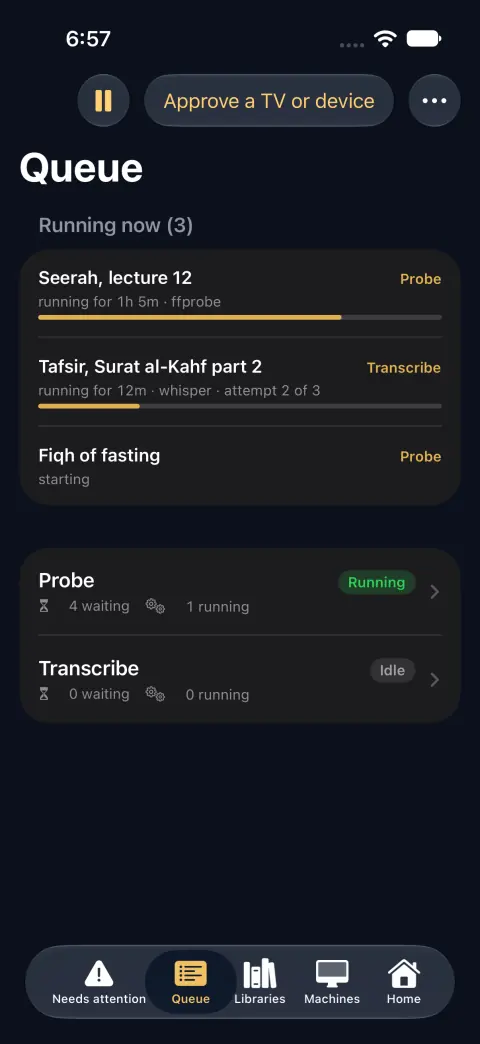
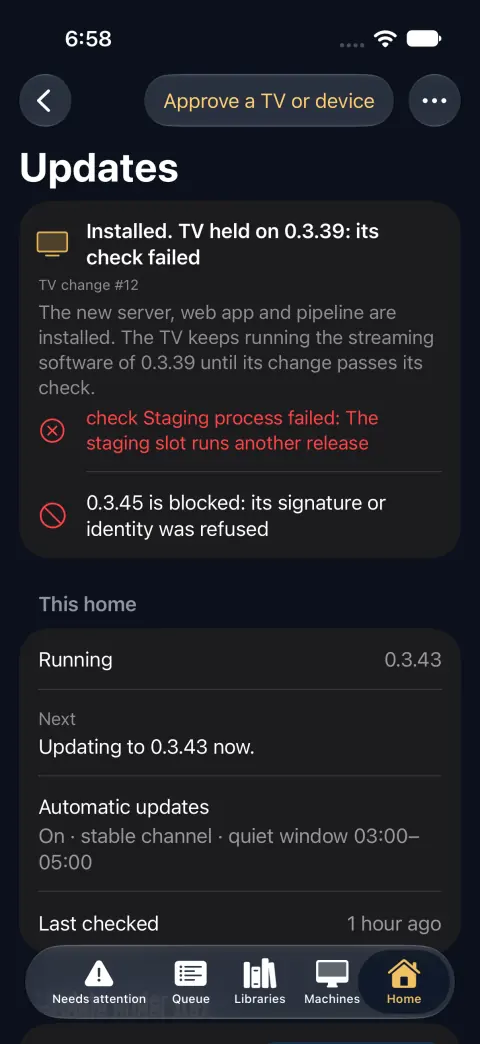
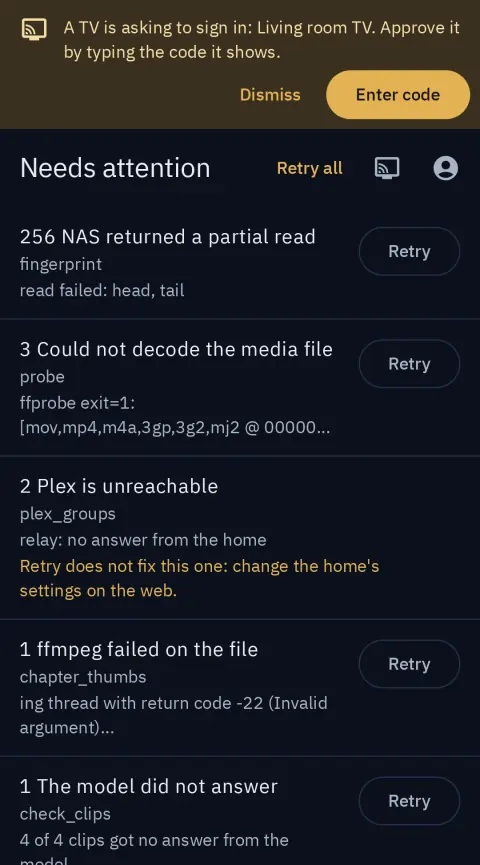
Every screenshot on these pages was taken in the dark theme on made-up test data: the Apple apps' screenshots come from their UI tests in CI, which run against a pretend home; the Android ones from the apps' screenshot tests; the web app and the big screen from a test home filled with invented libraries. The names, titles and codes in them are test data.