
Maktaba Player
Maktaba Player is the app for watching. It browses the home's libraries and series, searches what is said in the videos, plays the Live TV channels, and picks up where you stopped on any device.
Who it is for
Anyone with an account on a home, whatever the role. It shows only the libraries and channels that account may see, and Live TV appears only when the person may watch a channel.
What it does
- Home: what you were watching, the next lesson of each series you are in, what was added lately, and the rows the home suggests.
- Libraries: each library with its series, collections and videos, filtered and sorted; pin the libraries you use most.
- Live TV: Now, with what is on each channel and how far it has gone, and the Guide; choose a channel to watch it live.
- Search: titles and transcripts; a transcript result plays the video at that moment.
- Profile: watch history, favorites, playlists and sessions, Approve a TV or device, switch home, and this device's theme, language and playback settings.
- Watching: subtitles and audio tracks, the next lesson, AirPlay and Picture in Picture on Apple devices, picture in picture and sound with the screen off on Android. On the Mac the video fills the window and the Playback menu has the keys.
The layout follows the window: a tab bar on an iPhone and a sidebar on an iPad and the Mac; on Android a bar at the bottom of a phone, a rail or a drawer on a wider window, the list beside the page on a tablet, and the screen split at the hinge of a half-folded foldable.
Platforms and how to get it
| Platform | App | How to get it |
|---|---|---|
| iPhone | Maktaba Player | TestFlight |
| iPad | Maktaba Player for iPad | TestFlight |
| Mac (macOS 15 or later, Apple silicon) | Maktaba Player for Mac | TestFlight |
| Android phones, foldables and tablets (Android 8 or later) | Maktaba Player | Google Play internal testing |
| Windows 10 or later (x86-64) | Maktaba Player | Maktaba-Player_<v>_x64.msi from the latest release; it updates itself |
| Linux (x86-64 and ARM64) | Maktaba Player | the .deb or .rpm from the latest release; it updates itself |
Signing in
Every app starts at the home picker. On this network lists the homes that announce themselves on the local network, Your homes the ones this device used before, and By address takes the address you open Maktaba at in a browser, or a maktaba://connect link the home shared. Phones and tablets can also scan a QR code, and Through Maktaba Cloud reaches a home linked to a cloud account from anywhere.
Then sign in with a username and password, or with a code: the device shows a code such as ABCD-1234 and a QR code, and someone already signed in approves it. In Maktaba Remote, Approve a TV or device is at the top of every screen; in Maktaba Player it is under Profile (on the Mac, in the Account menu); in the web app it is the Sign in a device page (/pair). The new device is signed in as the person who approved it, with that person's role.
Screenshots
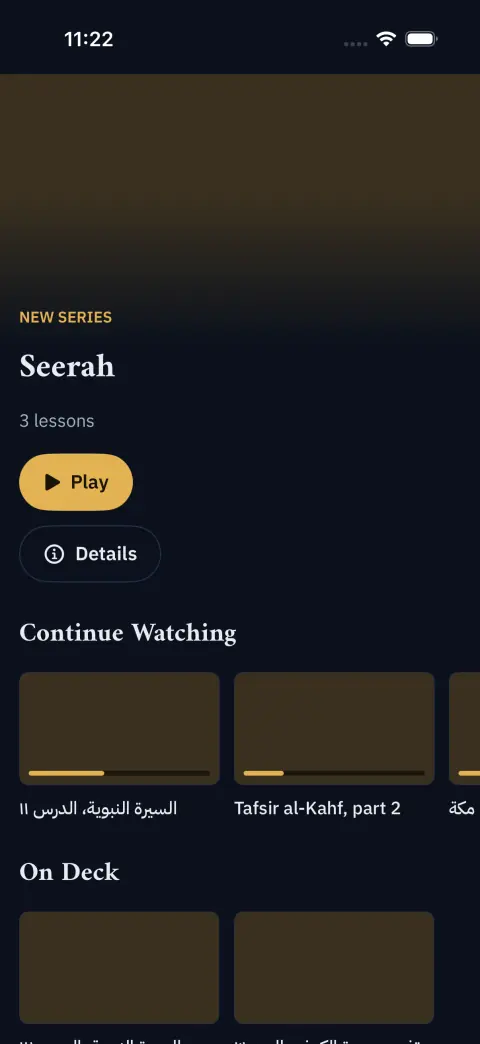
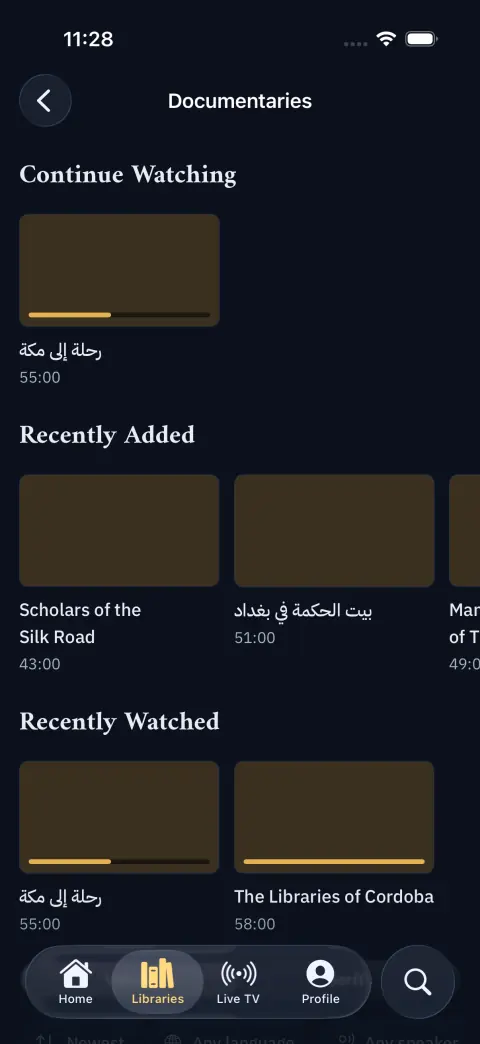
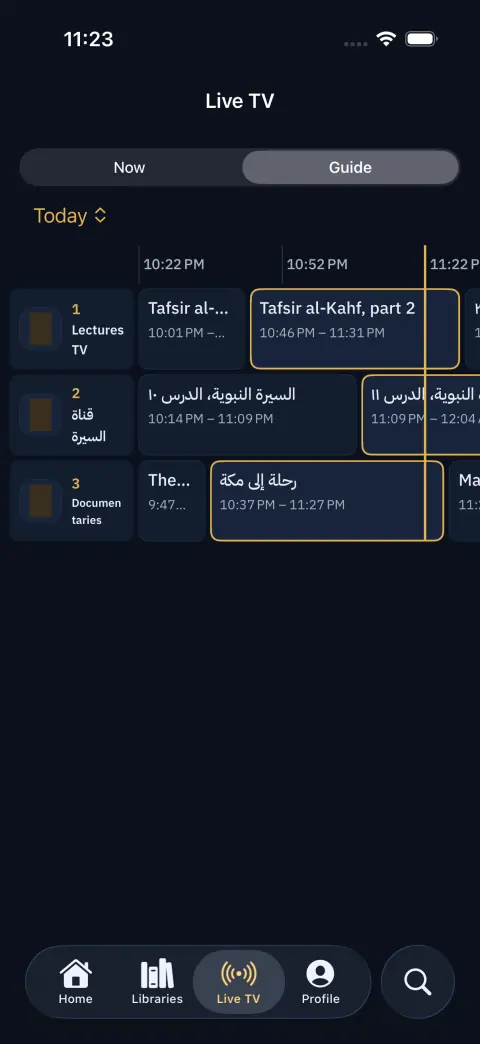
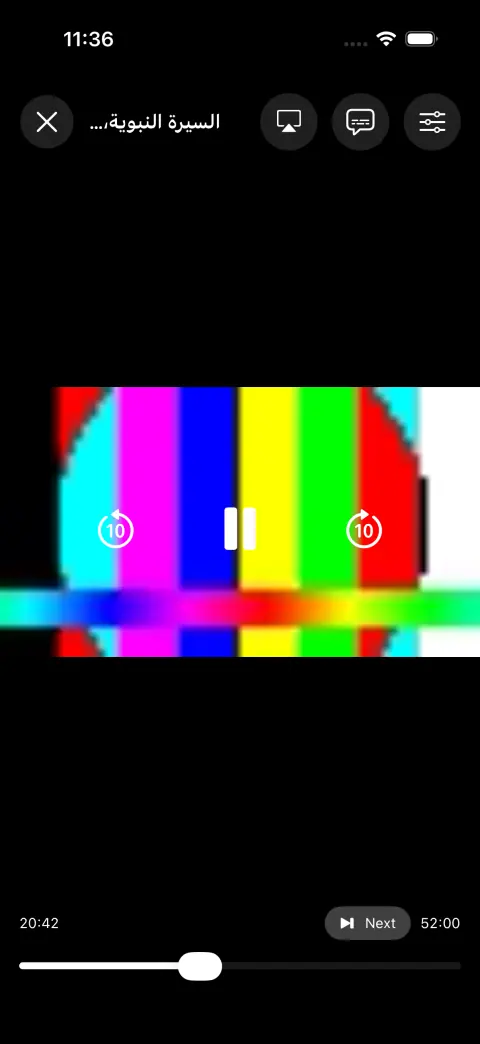
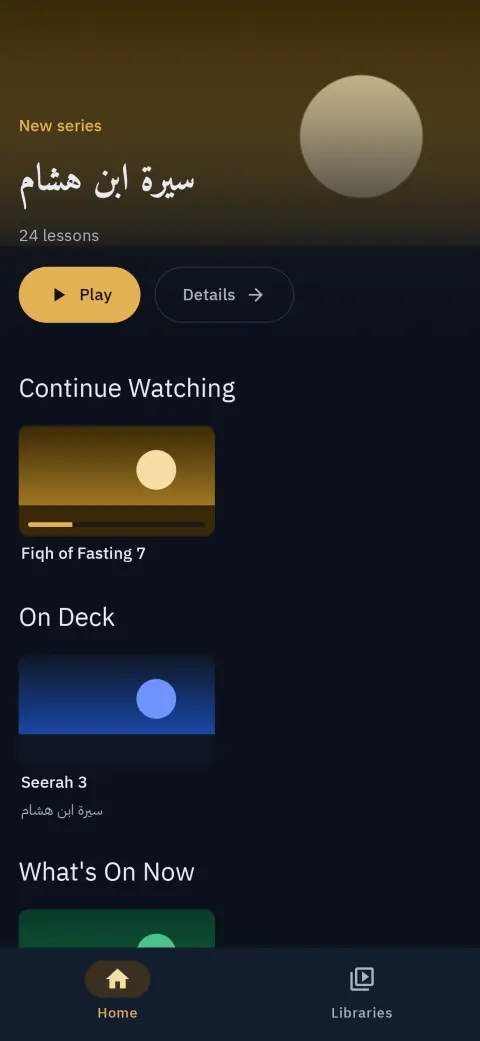
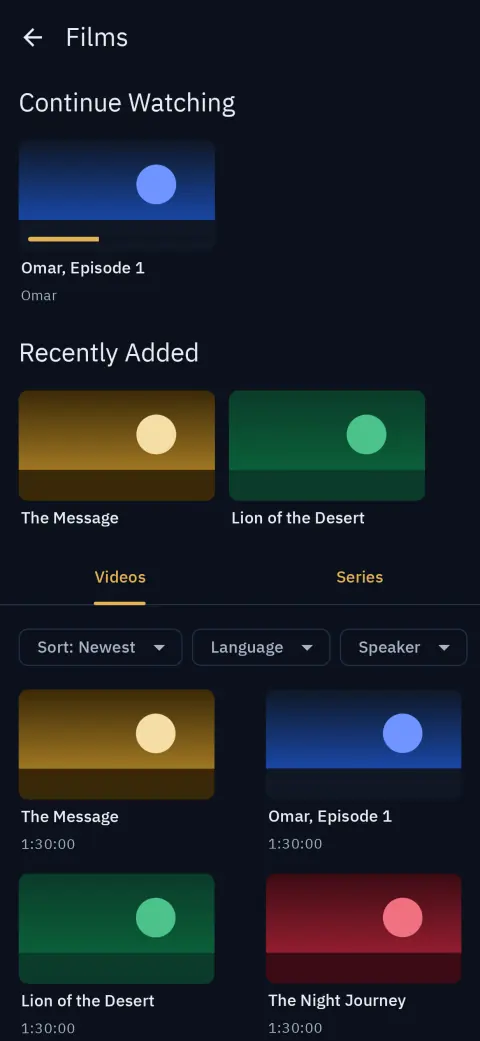
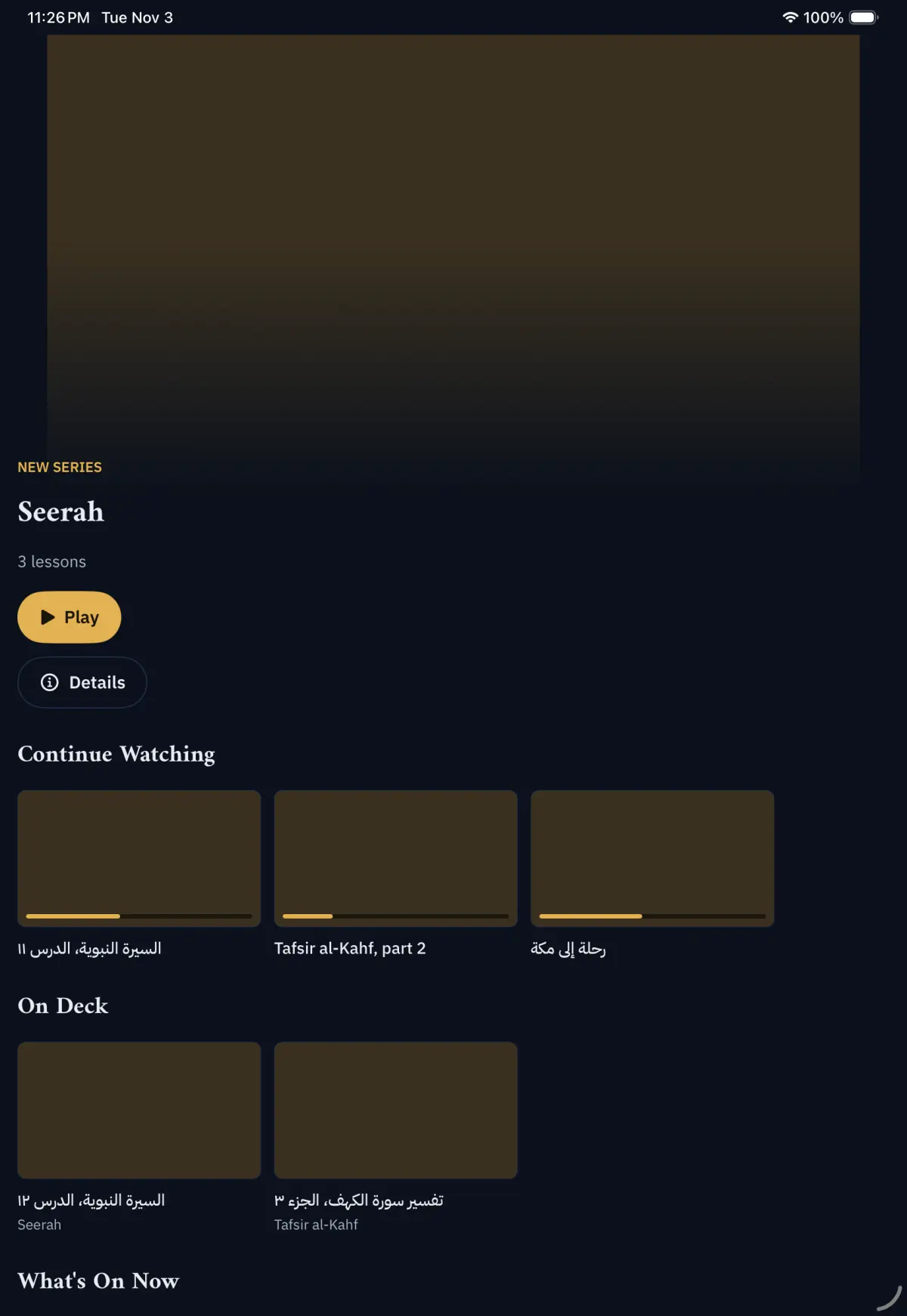
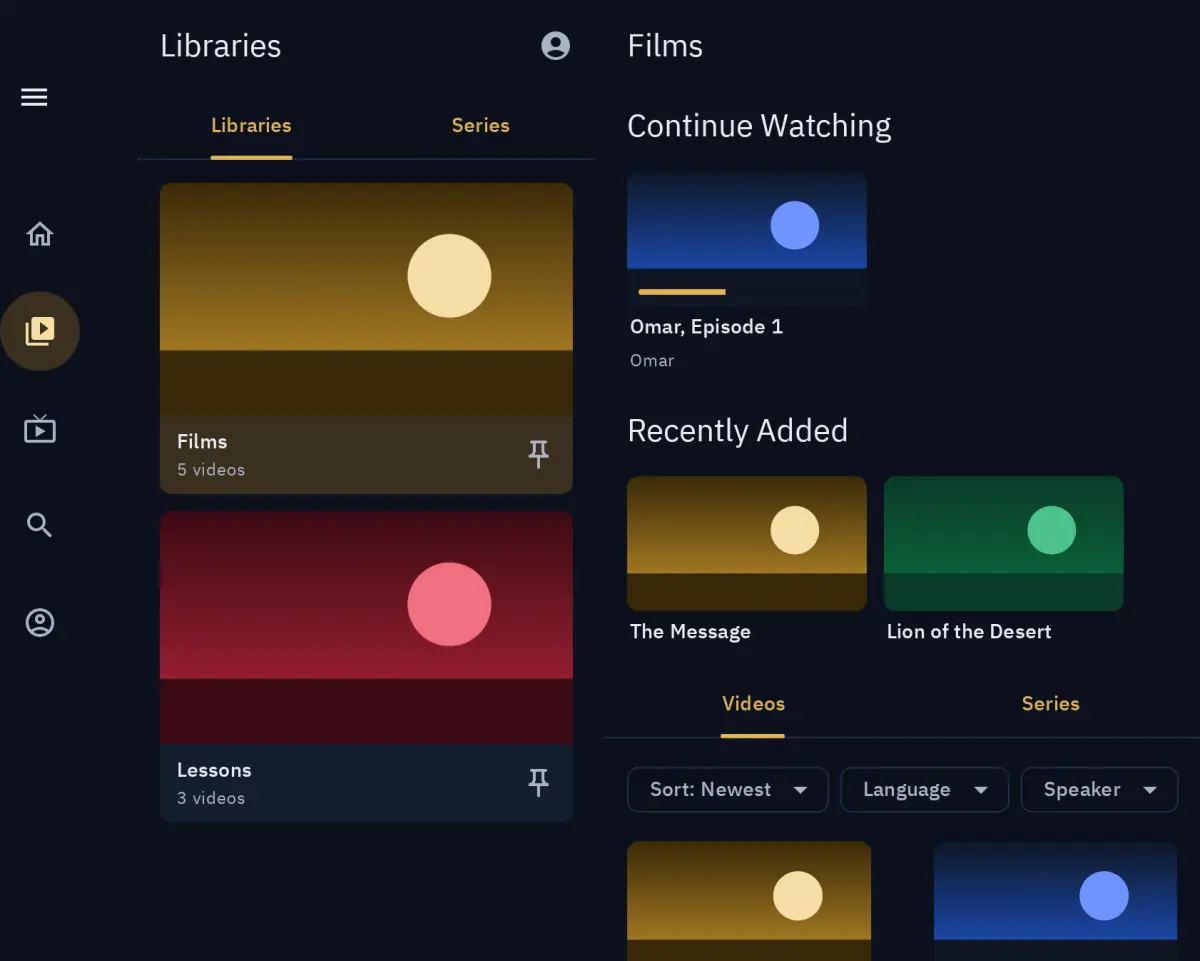
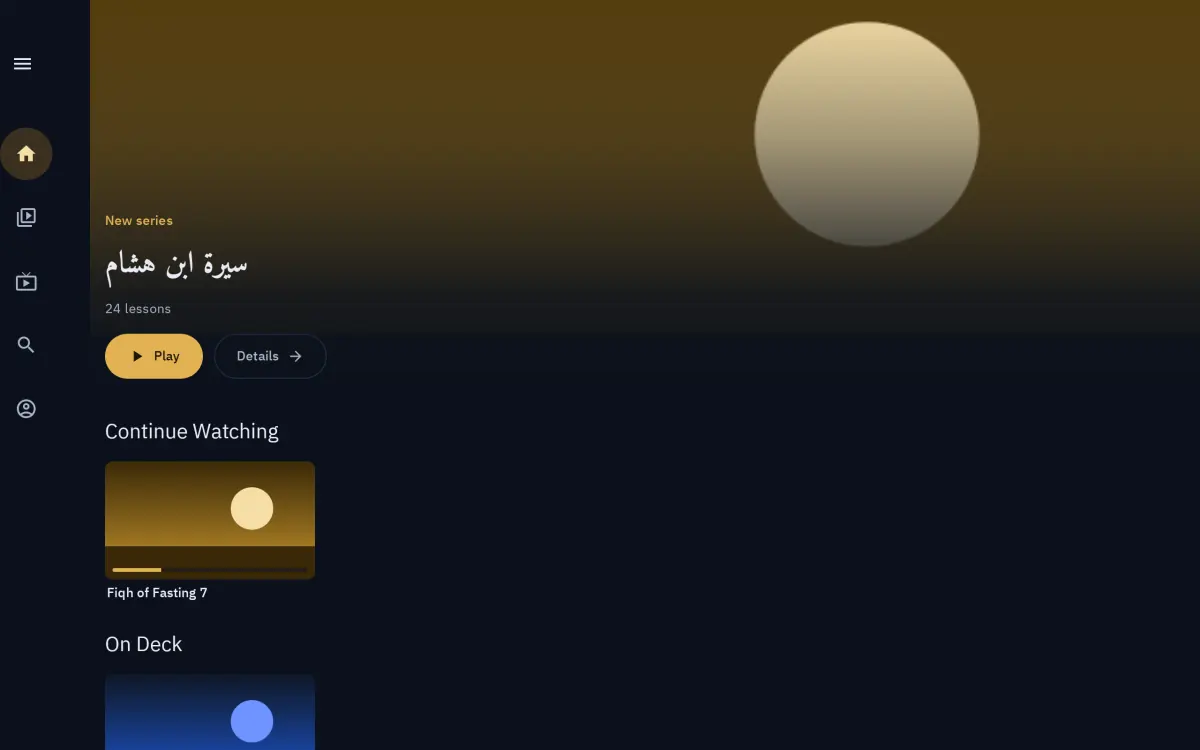
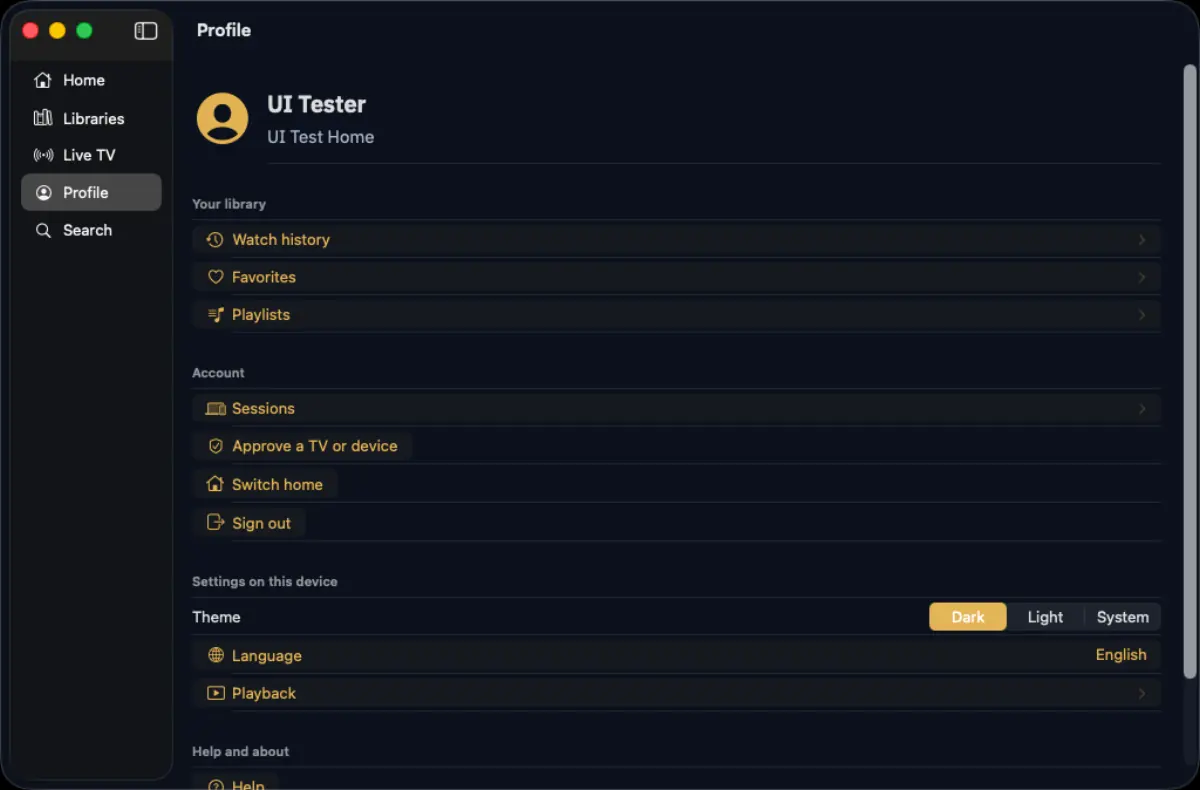
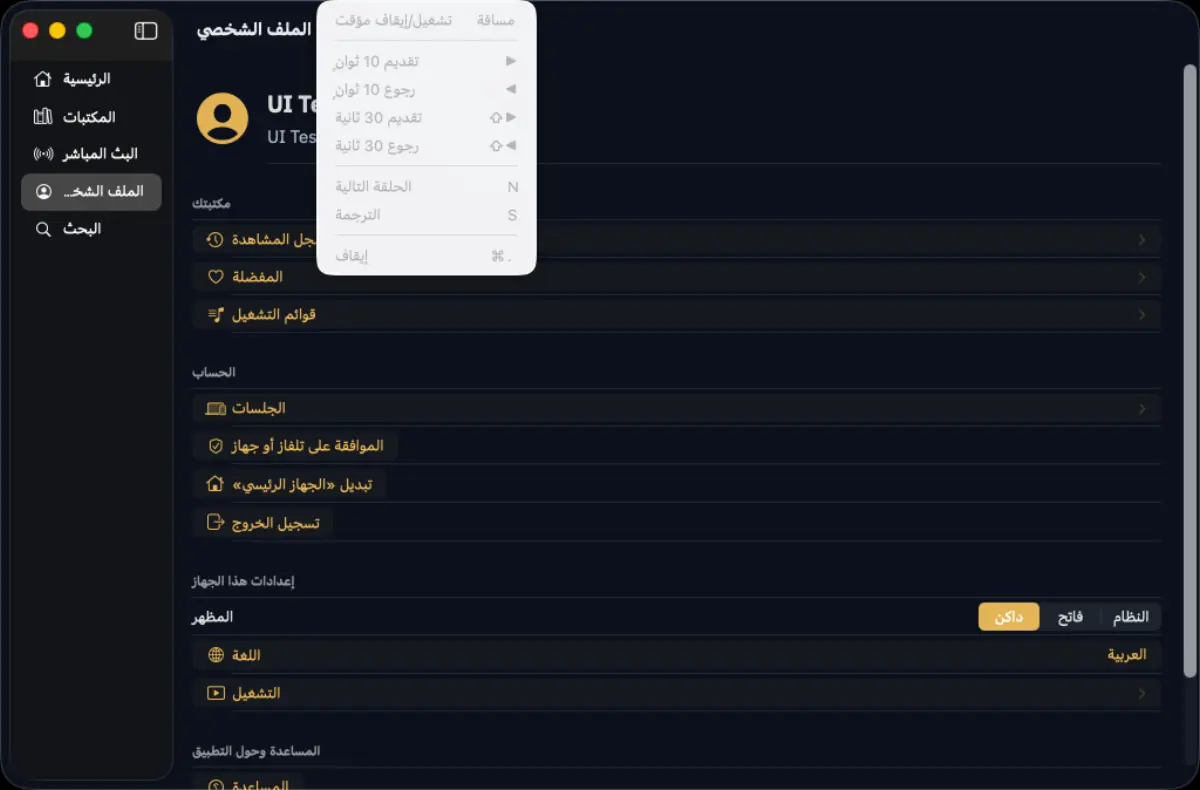
Every screenshot on these pages was taken in the dark theme on made-up test data: the Apple apps' screenshots come from their UI tests in CI, which run against a pretend home; the Android ones from the apps' screenshot tests; the web app and the big screen from a test home filled with invented libraries. The names, titles and codes in them are test data.